Update content and media of your products

Content and media require regular updates to be in line with market trends and to provide recent information to our mutual customers
You can easily request content and media changes using our ticketing system feature on Hub!
Here's how you can get it done:
Step 1: Log in to Hub
Log in to your Hub Account using your credentials.
Step 2: Go to Help Center
Click on the icon at the bottom left of your screen.
Step 3: Click on "Submit a Request"
It is located at the top right corner of the Help Center.
Step 4: Select the relevant category
"Update Content and Media" from the drop-down menu.
Step 5: Select the issue
You can either select to update content or media from the given options, depending on your requirement.
Step 6: Fill in the remaining fields with relevant information.
If you select update/change content, here's what you have to do:
1. Select whether you need to make changes on the website.
2. Fill in the content changes you want to make- You can do this by entering it in the respective field directly, or you can paste a link for a Word document with all the required changes, and we’ll get on it.
Similarly, if you select update/change media content, here's what you have to do:
1. Enter the name of the product for which you want to make the changes.
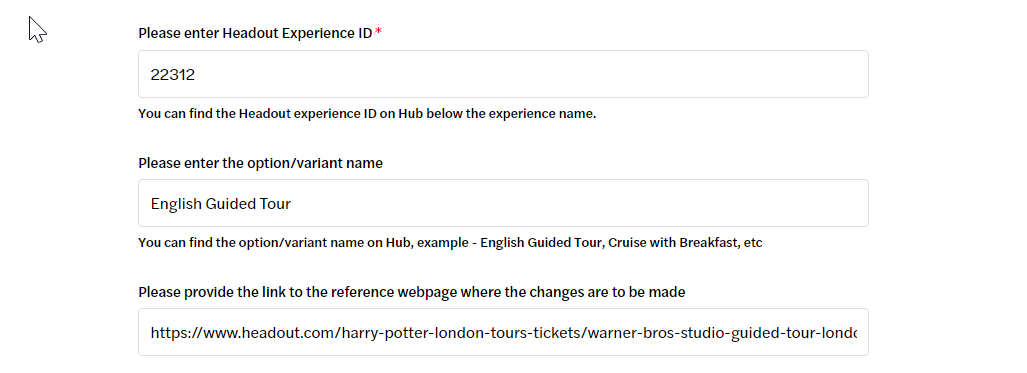
2. Enter the google Drive/ Dropbox link for the media that you want to update.
Click on Submit and the request will be sent to the concerned team!
Was this article helpful?
2 out of 3 found this helpful